How I Solved Connectivity Issues on Google Pixel
How to solve connectivity issues on Google Pixel in Russia. Detailed guide with working methods, including connection reset automation and tips from the 4PDA forum.

Connectivity Issues on Google Pixel in Russia: Causes and Solutions
Connectivity issues for Google Pixel users are a known problem, especially in Russia. Many Pixel owners face situations where they cannot make or receive calls, hear strange sounds in the handset, or are simply not heard.
In my case, no one could reach me, and I also couldn’t make outgoing calls (there were either some strange sounds in the handset or I just wasn’t heard).
Scale of the Problem with Google Pixel in Russia
There are no exact statistics on the number of Google Pixel users in Russia, as Google does not officially sell its devices in the country. Most devices are imported unofficially, which aggravates the situation. However, connectivity problems are actively discussed on forums and social networks, especially on Pixel 8 models.
Main User Complaints
- Poor signal reception in weak coverage areas.
- Unstable LTE/4G operation.
- Problems connecting to Russian telecom operator networks.
Assessing the Scale of the Problem
According to unofficial data, from 10% to 30% of Pixel 8 users in Russia face connectivity problems. It depends on:
- Region of residence (problems are less noticeable in large cities).
- Telecom operator (some operators are more compatible with Pixel).
- Firmware version and device settings.
Causes of Connectivity Problems on Google Pixel
1. Frequency Incompatibility
Pixel 8 may not support all frequencies used by Russian operators, especially in regions with less developed infrastructure.
2. Lack of Updates
Devices imported unofficially often do not receive firmware updates, which aggravates the problems.
3. Hardware Limitations
The Qualcomm or Samsung modem in Pixel 8 may be less stable in weak signal conditions.
Comparison with Other Pixel Models
Connectivity problems are also observed on other Pixel models (for example, Pixel 6 and 7). However, on Pixel 8 they may be less pronounced due to an improved modem and support for a larger number of frequencies. Nevertheless, in Russia, these improvements may not fully compensate for the lack of official support.
Options for Solving Connectivity Problems on Google Pixel
Recommendations from 4PDA Forum
On the 4PDA forum, users suggest the following solutions:
- Disable Adaptive Connectivity (settings and app).
- Enable 3G to check if the problem is related to 4G/LTE.
- Activate VoLTE via Shizuku and PixelIMS (if the operator supports VoLTE).
Important: If the operator does not support VoLTE in your region, activating it on the phone will not help.
- Change SIM card or operator.
None of the above methods helped me. Activating VoLTE resets after every system reboot/update.
Working Method: Network Connection Reset
One of the little-known but effective ways is network connection reset.
The system suggests this method itself if you go to “Mobile Network Troubleshooting” -> “Reset Connection”
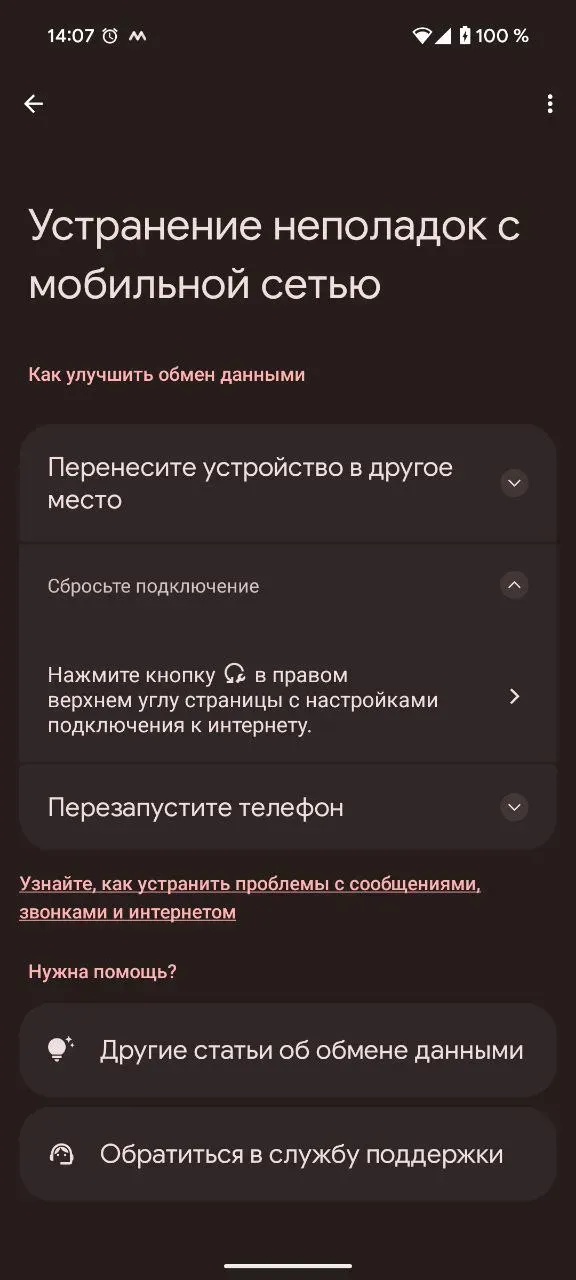
It works, but the effect is temporary (2-3 hours or until changing the cell tower).
For stable mobile network operation, it is necessary to go to network settings every 2 hours and press the connection reset button, but this is inconvenient, so the idea of automating this process arose.

Automating Connection Reset
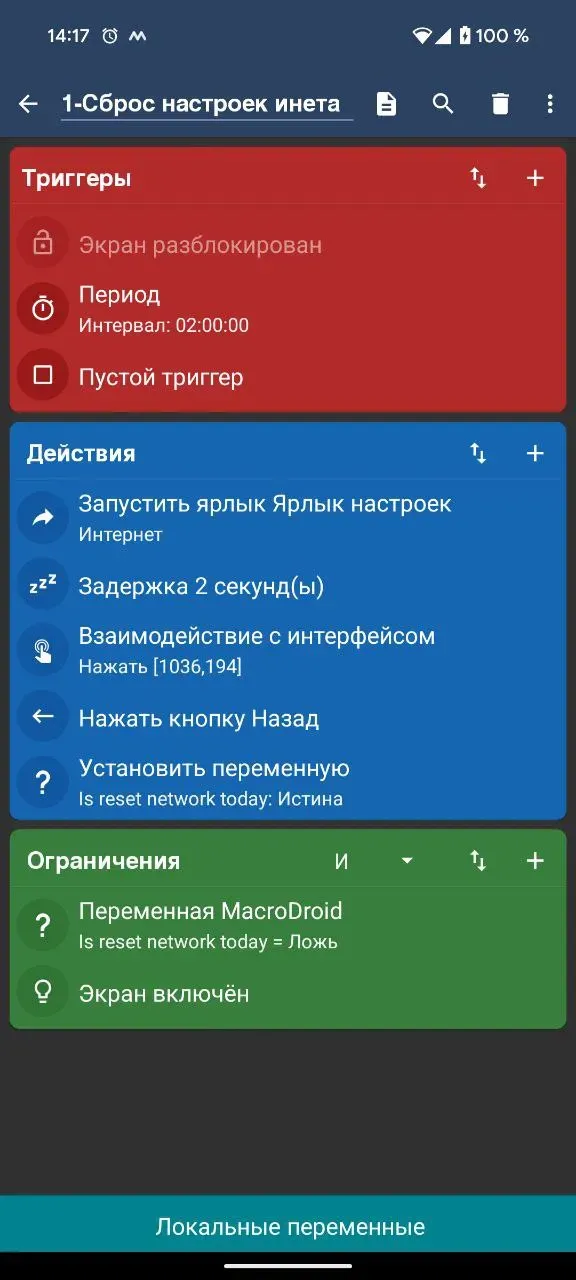
To automate the process, you can use the MacroDroid app. Here is a step-by-step instruction:
- Download and install MacroDroid from Google Play.
- Create a new macro.
- Add actions:
- Launch Shortcut → Settings Shortcut → Internet.
- Delay for 1-2 seconds.
Delay is necessary for the settings page to open before the next action.
- UI Interaction → Click → Specify connection reset button position (e.g., [1036,194]).
Position can be determined using the “UI Interaction” card, “Click” item, and “Identify in App”.
- Press Back Button.
- Test the macro by selecting “Test Actions” in the top right drop-down menu.
- Add triggers, for example, periodic launch every 2-3 hours or when unlocking the screen.
Minus: The method works only when the screen is unlocked.
Conclusion
Connectivity problems on Google Pixel in Russia are a common issue caused by frequency incompatibility, lack of updates, and hardware limitations. However, using connection reset automation and other methods described above, the situation can be significantly improved.
In my case, this method solved the connectivity problem.
Have an idea?
We take care of the entire process: from concept to realization. Video, design, development.